

Meet Mitski. Study with purpose.
Follow Mitski through your medical study day. Plan your time, practise your reasoning, and revisit what you learn.
Your time. Your next step. One connected place to learn.
 Think through a case.
 Make time to remember.
Morning. One plan that fits your time.
Your syllabus, your due recall, one interleaved concept — chosen for you.
Alternate related topics, then explain what makes each one different.Study tip
Open this in the app
Late morning. The lecture that lost you.
Paste a lecture, add a photo or dictate where supported. Work through diagnostic questions, then repair the missing prerequisites.
Repair the earliest idea you're unsure of before rereading the whole topic.Study tip
Open this in the app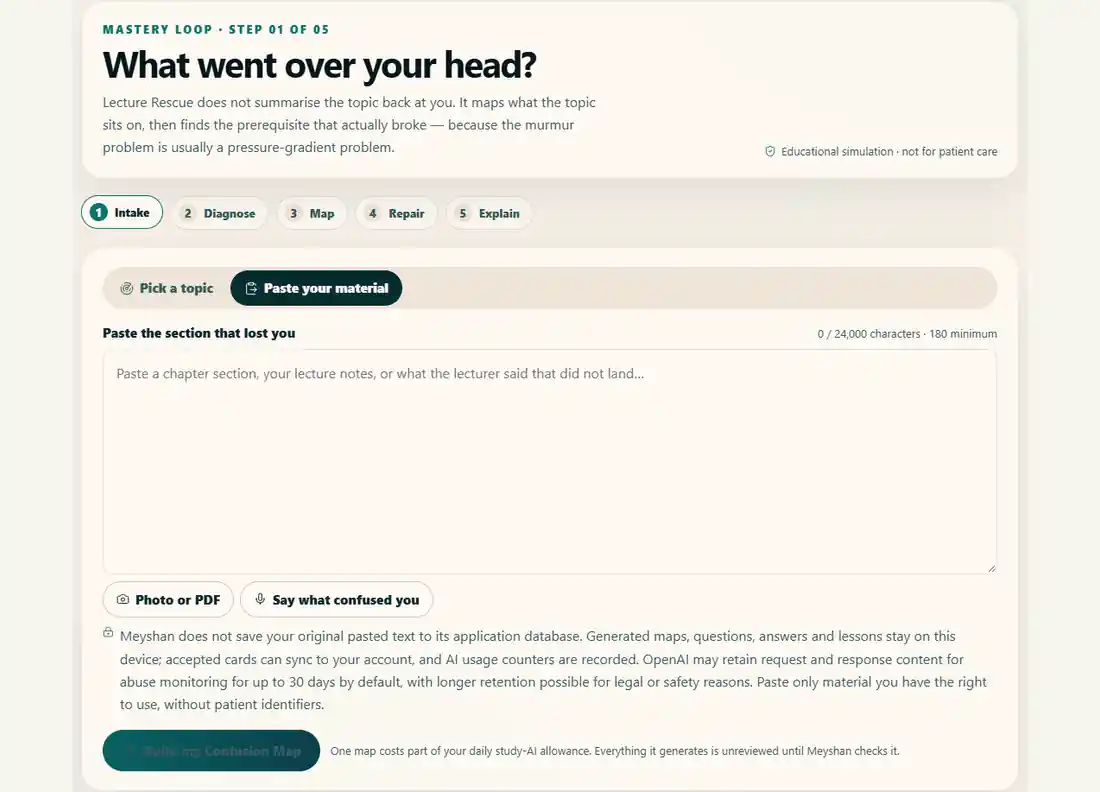
Midday. Questions that explain every option.
Answer, say how sure you were, then read why each wrong option is wrong.
Say how sure you are before checking — confident wrong answers are the first ones to fix.Study tip
Open this in the app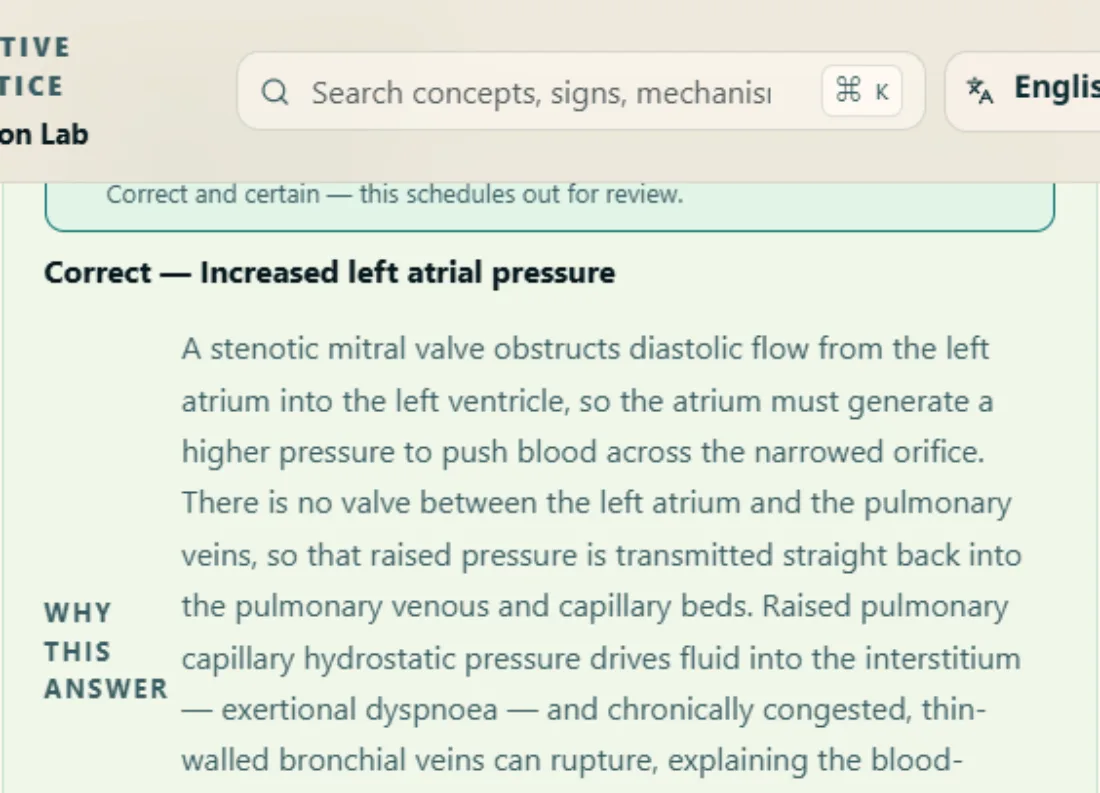
Afternoon ward mind.
An AI patient answers. Every test costs. Commit before the reveal.
State your reasoning before the reveal, then compare it with the feedback.Study tip
Open this in the app
Eleven interactive anatomy models.
Tap a structure, learn why it matters, quiz yourself on it.
Rotate the model, hide its labels, then sketch or name the structures from memory.Study tip
Open this in the app
Practicals, simulated.
Station to station, one minute each — like the real hall, minus the fear.
Name what you see, then explain its significance before checking the feedback.Study tip
Open this in the app
Cards scheduled from your review history.
FSRS (Free Spaced Repetition Scheduler) uses your review history to estimate useful review intervals.
Try to recall the answer before revealing it, then rate how easily it came back.Study tip
Open this in the app
Dreaming bigger?
The USMLE path, step by step — current, dated, official sources only.
Check the dated official exam guidance before setting your study milestones.Study tip
Open this in the app
Evening. The last frame stays closed.
That one's your life outside study. She'll see you tomorrow.
Seven steps, one loop — this is the whole identity
Every feature on this site is one arc of the same loop: find what actually broke, repair it from the foundation up, prove it by teaching it back, and let the recheck find you.
- 1DiagnoseShort confidence-tagged questions find what actually broke — not what feels broken.
- 2RepairLessons teach the deepest broken prerequisite first, one small concept per turn.
- 3LearnEvery turn ends in a check you must answer and stand behind — a lucky guess repairs nothing.
- 4AskStuck? Ask for a simpler analogy, a clinical case, or Hindi — the lesson adapts.
- 5Explain BackTeach it to an examiner or a patient; two different rubrics grade you honestly.
- 6Create RecallThe session collapses into an editable deck — 2-minute, 3-day, 1-week and exam-style cards.
- 7RecheckFSRS estimates useful return intervals from your review history; it cannot predict an exact forgetting moment.
The honest manual, module by module
How to use it, what actually powers it, where it can be wrong, and what happens to your data — four tabs per module, zero marketing.
Every module follows the same review process, built by Meyshan.
Daily PulseA study day sized to the time you actually have.
How to use it
- 1Open Today and check the plan — it is already sized to the minutes you set in your Study Profile.
- 2Work through the activities in order; tick each one as you finish.
- 3Watch the completion ring close; finishing the last item ends the day with a small celebration.
- 4If your Weakness Ledger has entries, your two weakest concepts appear here — tap one to see the full ledger.
The tech behind it
The plan is assembled on your device from a pool of activity templates, filtered to fit your available minutes. No AI is involved in building the daily plan — it is deterministic, so the same profile always gets a fair, balanced day.
Limitations — read this
The pilot includes cardiovascular activities and 24 source-linked foundation questions across respiratory, renal, neuroscience, endocrine, digestive and immunity topics. These additions await independent human review; they are not full specialty or exam coverage.
Completion tracks what you ticked, not what you learned; the honest signal of learning lives in Recall and the Ledger.
Your data
Your plan progress and profile stay on this device in guest mode. Signing in syncs selected study progress so you can continue on another device. Nothing about your study content is sent to analytics.
RecallSpaced retrieval guided by your review history.
How to use it
- 1Open Recall and answer the cards that are due — say the answer before revealing it.
- 2Rate yourself honestly: Again, Hard, Good or Easy. The rating decides when the card returns.
- 3Use cloze and image-occlusion cards for anatomy — hide the labels, rebuild the map from memory.
- 4Cards you created in Card Studio and decks accepted from Lecture Rescue appear in the same queue.
The tech behind it
Scheduling runs on FSRS, an open-source spaced-repetition algorithm that estimates memory stability and difficulty. Reviews are scheduled when a memory is likely to be forgotten; this is an estimate, not an exact prediction. Every surface on the site that schedules review uses this one engine — there is no second scheduler anywhere.
Limitations — read this
FSRS optimises timing, not truth: rating yourself Easy on a wrong understanding schedules the error further away. The confidence buttons exist to catch exactly that.
A new deck needs a few days of honest ratings before the intervals become personal.
Your data
Guest review history lives in this browser's storage. Signed in, your review records sync privately so intervals follow you across devices.
Clinical StudioInterview a patient who does not know their diagnosis.
How to use it
- 1Pick a case and a difficulty — the difficulty sets your time and investigation budget.
- 2Interview the simulated patient in plain language; order investigations that would change your mind.
- 3Commit to a diagnosis and a management plan BEFORE the reveal — commitment is where the learning happens.
- 4Read the examiner's rubric: history, efficiency, accuracy and safety are scored separately.
The tech behind it
The patient is played by an AI model that is given only what a patient would know — their story and symptoms, never the diagnosis. It cannot reveal what it does not have. Grading combines a deterministic rubric with AI assessment when you are signed in.
Limitations — read this
The patient is fictional and the encounter is a simulation — it is practice for reasoning, not a clinical reference.
AI grading can be imperfect; the deterministic rubric is the floor, and everything carries the educational-prototype notice.
Guest mode has a small daily allowance of patient turns; signing in raises it.
Your data
AI requests use store:false, but OpenAI may retain abuse-monitoring logs containing request and response content for up to 30 days by default, with longer retention possible for legal or safety reasons. Meyshan saves signed-in case results, including the diagnosis you enter, score and feedback; simulation state may also be saved on your device and in private account sync. Conversation text is excluded from analytics.
3D Clinical AtlasEleven interactive anatomy models to explore and question.
How to use it
- 1Open an organ — it loads as an instant image first; tap to bring the full 3D model to life.
- 2Drag to rotate, scroll to zoom, tap a glowing dot to read about that structure.
- 3Run the labelling quiz: locate each structure, then say how certain you were — a lucky tap is not spatial knowledge.
- 4Anatomy words inside Lecture Rescue lessons are tappable and open the atlas at the right organ, with a one-tap way back.
The tech behind it
The models are real 3D meshes rendered in your browser with three.js — no plugins, no downloads beyond the model itself. The poster-first pattern keeps the page fast: zero 3D bytes load until you engage, and low-power phones stay on the still image by choice.
Limitations — read this
Models are teaching simplifications, not surgical references — small structures are exaggerated for legibility.
Older phones may cap resolution to protect the battery; the quiz works either way.
Your data
Quiz results and confidence tags feed your device's weak-signal ledger; missed structures schedule into Recall. The models themselves are static files — nothing about how you rotate them is recorded.
Spotter HallName what you see, then say why it matters.
How to use it
- 1Choose a spotter image — histology, gross specimens, instruments and more.
- 2Step one: describe the finding in your own words. Step two: say why it matters clinically.
- 3Read the two-part score, see which discriminating words you captured and which to repair.
- 4Tag your confidence — a pass you guessed your way through stays in your weak signals.
The tech behind it
Your description is compared against expert keywords with an AI-assisted rubric: half the marks for the finding, half for its significance. Occlusion masks let you turn any image into recall practice.
Limitations — read this
Keyword matching rewards precise vocabulary — a right idea in vague words scores lower than it deserves; use the feedback to sharpen terms, not to argue with the meter.
Uploaded images must carry no patient identifiers, ever.
Your data
Scores and confidence tags stay on-device for guests and sync when signed in. Adding your own image requires sign-in: it is stored in your private Spotter library until you delete it and is never added to anyone else's library.
USMLE JourneyThe official process, one checklist at a time.
How to use it
- 1Work down the checklist — each item is a real step in the ECFMG/USMLE process with its documents and fees.
- 2Tick what you have completed; the journey view keeps your place.
- 3Use the linked official sources for anything involving money or deadlines.
The tech behind it
A hand-maintained checklist — deliberately no AI. Process facts change on official sites first, so every step links out to the source.
Limitations — read this
Registration windows, fees and rules change without notice. ALWAYS confirm on the official ECFMG/USMLE sites before paying or booking anything — this checklist is a map, not the territory.
Your data
Your ticks stay on this device in guest mode and sync privately when signed in. Nothing here asks for your official IDs or documents.
Card StudioYour cards, your decks — one scheduling brain.
How to use it
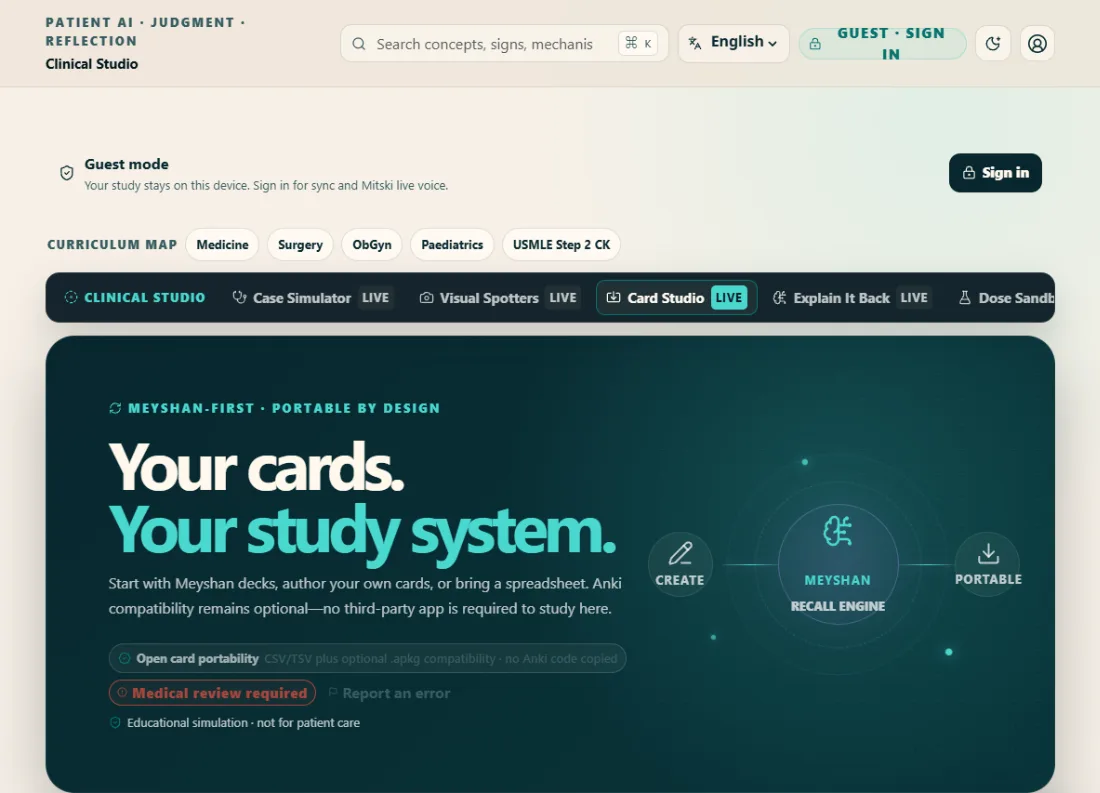
- 1Create cards by hand, import decks (csv, tsv or Anki .apkg), or accept a generated "Rescue: topic" deck.
- 2Edit anything before it enters rotation — fronts, backs, tags.
- 3Export to csv whenever you want your cards elsewhere; they are yours.
The tech behind it
One card model feeds one FSRS scheduler. Imported Anki decks keep their review history where the format allows, so your intervals survive the move.
Limitations — read this
Complex Anki note types flatten to front/back on import — check a sample before importing a huge deck.
Generated rescue decks remain unreviewed AI content unless an applicable independent review is recorded for that exact content. Check the source label and original reference before accepting a card.
Your data
Cards sync for signed-in students and stay local for guests. Export works either way — there is no lock-in by design.
Lecture RescueFor the lecture that went over your head.
How to use it
- 1Paste the section that lost you, pick a topic, photograph the page or board, upload a PDF chapter, or just say it aloud — everything lands in the same editable text box first.
- 2Answer 5–8 diagnostic questions and say how sure you were each time.
- 3Read your Confusion Map: green is held, amber is shaky, red is broken or blocking. Start at the deepest red.
- 4Pick a time budget — Emergency 5, Understand 15, Master 45 or Exam tomorrow — and repair, one concept per lesson.
- 5Explain it back to an examiner or a patient, then accept the recall deck the session built for you.
The tech behind it
An AI model reads your material section by section and extracts a concept graph — concepts and the prerequisite links between them, never a summary. Source Truth chips grade every claim: directly supported by your material, simplified by Meyshan, added context, or needs review. The time budget changes the structure of lessons, not their word count.
Limitations — read this
Generated teaching is unreviewed AI content. Source chips describe provenance, not a clinical approval or a guarantee of accuracy. Verify claims against your textbook before using them.
A pasted section needs some mechanism in it; a bare list of headings cannot yield a prerequisite chain.
Photos and PDFs go through an AI reader: photos under 6 MB, PDFs under 15 MB. A chapter longer than the 24,000-character box comes back as its FIRST part with an honest note — trim to the section you need, or rescue the rest in another session.
Guests get one map a day with enough allowance to repair it; signing in raises the ceiling.
Your data
Meyshan does not write the original pasted lecture text to its application database. The generated map, questions, answers and lessons are saved on this device; cards you explicitly accept can also be saved to your signed-in Recall account. Meyshan records AI usage counters. OpenAI may retain request and response content in abuse-monitoring logs for up to 30 days by default, with longer retention possible for legal or safety reasons, even with store:false. Pasted text is excluded from analytics and shared libraries. Do not include patient identifiers.
Mitski ClassroomLearn a topic before it breaks.
How to use it
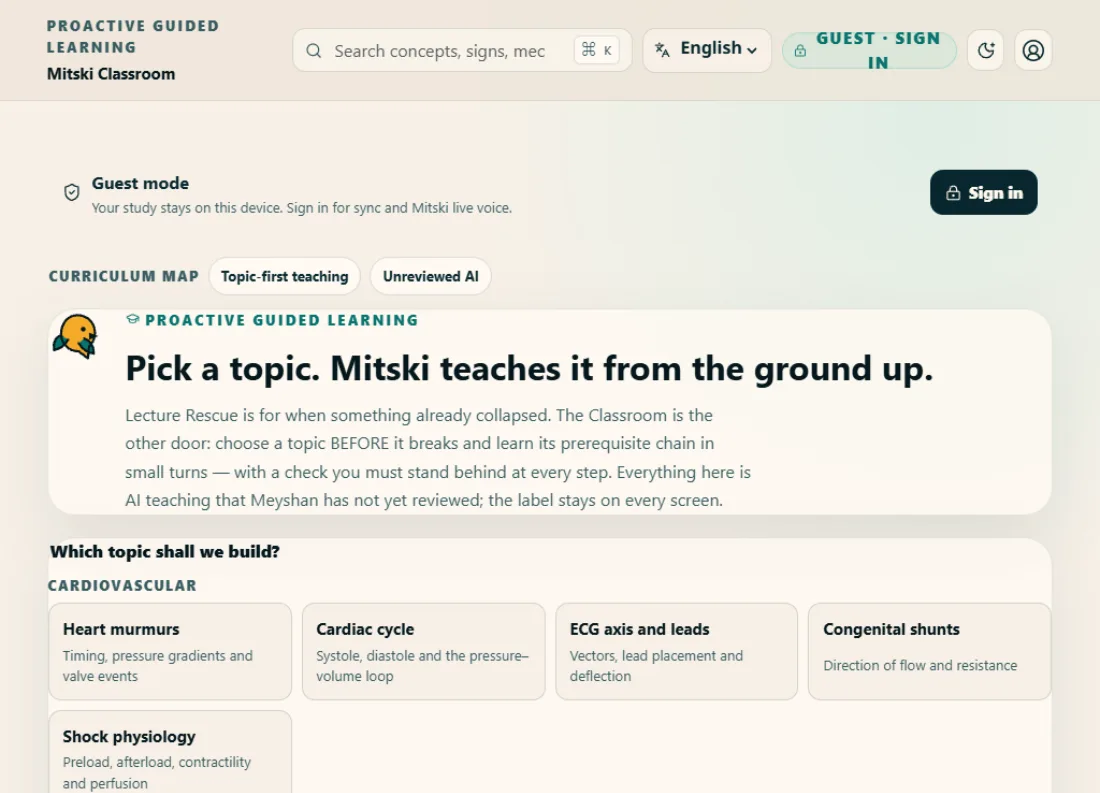
- 1Pick the topic and the depth — Build it from the ground, Make it clinical, or Sharpen for the exam.
- 2Mitski teaches the prerequisite chain bottom-up, one small concept per turn.
- 3Every turn ends in a check you answer with stated confidence — a lucky guess is not knowledge.
- 4If a turn doesn't land, ask for a simpler analogy, a clinical example, or Hindi.
- 5The class closes with questions drawn from the same chain, and the session can be kept as a recall deck on your shelf.
The tech behind it
The Classroom is Lecture Rescue's engine pointed forwards: the same topic-graph extraction decides the chain, the same turn-based lessons teach it, and the same re-explanation styles adapt it. There is no second AI architecture — only a different entry: Rescue starts from your confusion, the Classroom starts from your curiosity.
Limitations — read this
Everything the Classroom teaches is AI output that Meyshan has not yet reviewed — the label stays on every screen. Verify against your textbook before the exam.
It shares the same daily study-AI allowance as Lecture Rescue: a deep class costs several lessons' worth.
Voice teaching is not part of this version.
Your data
Your check answers and weak signals stay on this device, with private account sync where supported. Meyshan records AI usage counters. Teaching requests use store:false, but OpenAI may retain request and response content in abuse-monitoring logs for up to 30 days by default, with longer retention possible for legal or safety reasons. Analytics excludes lesson text and the content of your answers.
Commitment WallSay it to yourself, then keep it.
How to use it
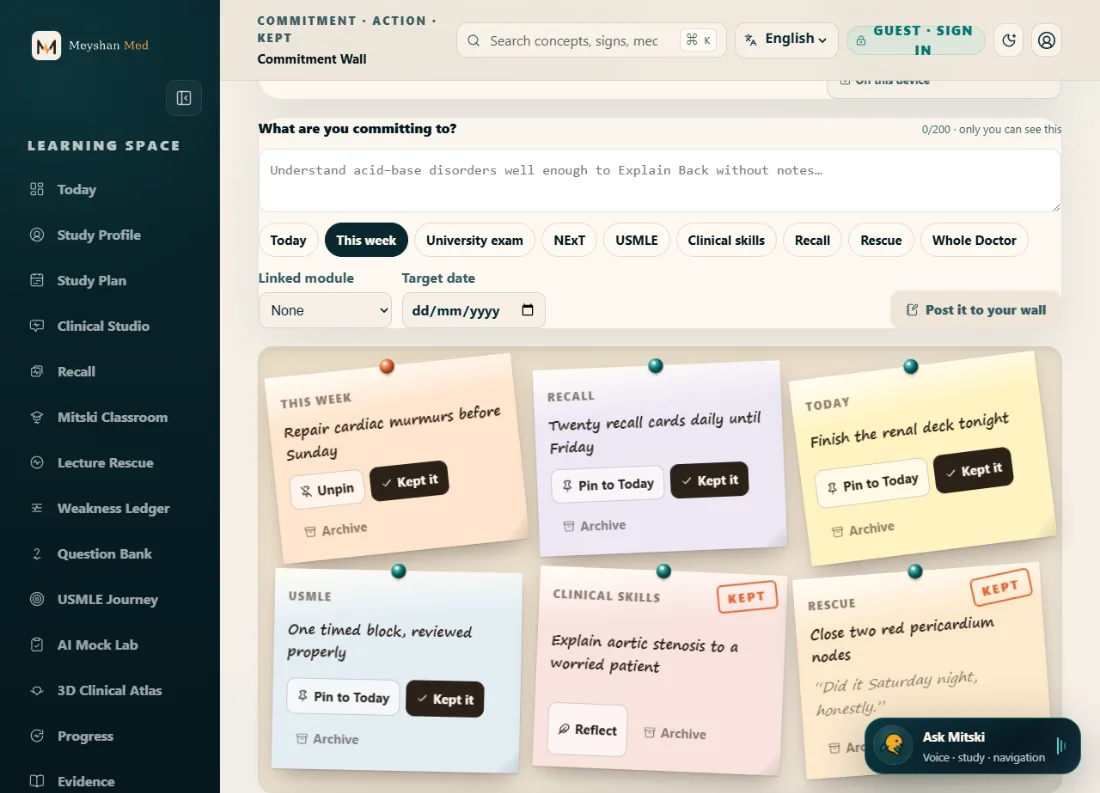
- 1Write a promise in your own words — “repair cardiac murmurs before Sunday” — and pick its category.
- 2Optionally link the module that will do the work and a target date, then post it to your wall.
- 3Pin the promise that owns today; it appears at the top of Today.
- 4Mark it kept only when it truly is, then add one honest line of reflection.
- 5Archive what no longer matters; restore it if it starts mattering again.
The tech behind it
The wall is deliberately simple technology: no AI anywhere in it. Completion is never inferred from your activity — the KEPT stamp is always your own hand, which is the point. The only metric is commitments kept.
Limitations — read this
It cannot verify a promise was really kept — it trusts you, because a wall you can cheat is a wall not worth having.
This version is private-only: there is no sharing, no Study Circle wall, and no leaderboard — none is pretended.
Your data
Commitments are private by design: stored on this device as a guest, synced privately when signed in. The text of a commitment or reflection never leaves for analytics — events carry category names only.
Question BankPractise the decision, not the wording.
How to use it
- 1Pick your exam lens and system, answer, and tag how sure you were — confidence is the point.
- 2Read the full explanation: why the right answer is right, and why EACH wrong option is wrong, with the real distinction.
- 3Where it helps, an option also tells you what change in the stem would have made it correct.
- 4A missed concept offers one-tap repair in Lecture Rescue; weak and guessed questions collect in your weak queue.
- 5Spotted a problem with a question? Report it in two taps — every report reaches the review desk.
The tech behind it
Questions include a stem, options, teaching explanations, concept links, source basis and review status. Automated quality checks and an owner publication decision are not independent clinical review. Use the item-specific status; new pilot content may remain review-pending.
Limitations — read this
The bank favours fewer excellent questions over volume — coverage grows through the quality pipeline, not bulk generation.
Explanations carry an academic-review-pending label until each item is individually reviewed.
Your data
Your answers, confidence tags and weak queue stay on this device as a guest and sync privately when signed in. A problem report sends the question id, the category you picked, and your optional one-line note to the review desk — analytics sees the category only.
Weakness LedgerReturn to the concepts that need another look.
How to use it
- 1Open the ledger to see recorded weak signals grouped by body system. Misconceptions appear before other signals, with recent entries first.
- 2Choose an entry to bring its topic into Lecture Rescue. Check that topic before starting the repair.
The tech behind it
The ledger reads existing signals on this device and orders them with fixed rules. It does not call an AI model to identify or rank weaknesses.
Limitations — read this
An empty ledger means no readable signals were found here; it does not prove that you have mastered a topic.
The ledger only sees weak signals saved in this browser, so treat it as a pointer to what to review next, not a full picture of what you know.
Your data
Weak signals stay in this browser. When you choose a repair, the topic is handed to Lecture Rescue on this device, and Rescue clears the handoff once it has read it.
Analytics records how many entries the ledger shows. Opening a repair also sends the topic name and which module flagged it — never your answers or notes.
AI Mock LabPractise a timed paper and inspect its feedback.
How to use it
- 1Try the authored demo without signing in, or sign in to generate a paper. Choose your subject, exam track, mode, difficulty, question count and marks; an optional PDF can supply the source material.
- 2Answer the paper, then finish to see scores and feedback. The demo is marked locally. If AI grading fails, the result explicitly uses a local rubric estimate.
The tech behind it
Generating a paper sends your settings and any PDF you attach to OpenAI; grading sends the questions, the marking guidance and your answers.
Generating papers needs sign-in. You get 12 units a day: a paper costs 2, grading costs 1, and failed requests are refunded. A site-wide AI limit, shared with other AI features (16 requests per 10 minutes, 80 per 24 hours), can pause you before your units run out.
Limitations — read this
AI questions, citations and scores can be wrong. Compare them with the original source and your course requirements; a mock score is not an official exam prediction.
Paper generation accepts 5–25 questions and up to 100 marks, with at least one mark per question. The optional source must be a PDF no larger than 15 MB. Service availability and shared limits can stop a request before the daily exam allowance is exhausted.
Your data
Each finished attempt saves a summary — when you finished, the subject, track, mode, scores and source — not your full answers or the PDF. It's kept in this browser and, when you're signed in, synced privately to your account.
Analytics only records that you started signing in from the Mock Lab, and whether saves succeed — never the paper, PDF or answers. Requests use store:false, but OpenAI may retain abuse-monitoring logs containing request and response content for up to 30 days by default, with longer retention possible for legal or safety reasons.
Study PlanA weekly board you can adjust to your available time.
How to use it
- 1Check the current Monday-to-Sunday board. Set your study profile, then generate recommendations using your exam track, available minutes and current subjects.
- 2Add your own sessions and mark work complete as you do it. Regenerating keeps manual and completed sessions; previous weeks remain available.
The tech behind it
A rule-based planner combines the study profile with available Recall work and, when signed in, recorded weak questions. It does not send the plan to an AI model to generate the week.
Limitations — read this
Recommendations cover the available study material, not your entire curriculum. Check the board against your timetable and exam syllabus.
Completion is your own checkmark, not proof of learning. If a signed-in save fails or conflicts with another device, editing pauses so you can back up the visible draft and reconcile it.
Your data
Your boards are saved in this browser, one per week. Signed in, they sync privately to your account, and conflicting edits from another device are caught rather than overwritten.
Generating recommendations sends analytics the plan type, daily minutes and whether you are signed in; rebalancing also includes the exam track. The plan_created event does not include your session titles or written study content.
Mastery MapRead your Recall history and choose the next review.
How to use it
- 1Open Mastery Map ("Progress" in the menu) to see your recorded reviews, how many different cards you've practised, the cards you last rated Again or Hard, and your saved review schedule.
- 2Use the links to continue Recall, bring a confusing concept to Rescue or begin a topic in Classroom. If history cannot be loaded, retry instead of treating missing figures as zero.
The tech behind it
The view calculates summaries from existing Recall records. It does not use AI to score your knowledge or write a new assessment of you.
Limitations — read this
Card ratings are self-reports. Review counts and due dates do not measure exam readiness, curriculum coverage or clinical competence.
As a guest, the history is whatever this browser has stored — including earlier guest sessions on the same device. Missing figures are labelled, never filled in.
Your data
As a guest, it reads the Recall history saved in this browser; signed in, it reads your privately synced Recall history.
This view reads the records without changing them and has no module-specific analytics event for the displayed counts. Normal page and navigation telemetry still applies.
Evidence DeskFind PubMed references, then appraise the original paper.
How to use it
- 1Enter a topic and choose all publications, reviews or randomised trials. Inspect the returned references, their source and retrieval time, then open the original PubMed record.
- 2Stage a useful reference for the Future research workspace. Staging a reference is a handoff; you still choose whether to add it to a research project.
The tech behind it
Search looks up PubMed through the US National Library of Medicine's service (NCBI) and returns up to four article summaries. No AI is involved, so nothing is written for you. Only your topic (up to 120 characters) and the filter you chose are sent.
Search works without an account. Everyone shares one cache and one rate limit with PubMed; there's no personal daily allowance.
Limitations — read this
References are discovery metadata, not clinical approval or a systematic review. Read and appraise the original paper before relying on a claim.
Results can be cached or stale during an outage; the UI labels that state and the retrieval time. An unavailable or empty search does not establish that no evidence exists.
Your data
To stay fast and within PubMed's limits, results are cached under a scrambled (hashed) version of the search — never the raw topic or who searched.
References you stage for the research workspace stay in this browser until you save or dismiss them. Analytics records whether a search worked and how many results came back, and, when you stage a reference, where it came from — never your search or the reference itself.
Mitski · Whole DoctorReflect, organise a next action and ask for study help.
How to use it
- 1Record a check-in, reflect on your direction and keep track of tasks or academic work. Your ratings describe your own reflection; they are not a clinical assessment.
- 2Type a question to Mitski without signing in. Live voice requires sign-in and microphone permission; use End to stop the conversation.
The tech behind it
Typed help sends your question, the mode you picked and up to four recent conversation messages to OpenAI. Requests use store:false, but OpenAI may still keep abuse-monitoring logs (see Your data).
Live voice connects you to OpenAI's realtime voice service. To set it up, we send Mitski's instructions, your name if we have it, and a scrambled (hashed) version of your email that OpenAI uses for abuse prevention — never the email itself. The store:false setting above covers typed help only.
Guests and signed-in students share the site-wide AI limit — 16 requests per 10 minutes and 80 per 24 hours — which other AI features also use. Guests are counted by a scrambled version of their network address that changes daily; signed-in students by their account.
Limitations — read this
Mitski can misunderstand a question or produce an incorrect explanation. She is a study and reflection companion, not a clinician or an emergency service.
As a guest, workspace changes last only until you leave or reload the page. Signed in, if a save fails or clashes with another device, your draft stays on screen and saving pauses until you download a backup and sort it out.
Your data
Signed in, your check-ins, reflections, tasks and academic work sync privately to your account. As a guest, they and your conversation exist only on the open page — nothing is saved to this browser — but you can download a backup.
Analytics never receives your reflections or conversations; only general navigation and save-status events are recorded. Typed questions and live audio go to OpenAI when you use them, and OpenAI may retain abuse-monitoring logs containing request and response content for up to 30 days by default, with longer retention possible for legal or safety reasons.
What each part does — and how they hold each other up
Tap any module to see when to use it, what it feeds, and what it honestly cannot do. Every arrow is a real, shipped connection — not a diagram wish.
Today — your Daily PulsePlan the day
The adaptive home screen. It reads your real time budget, your due recall, and your recorded weaknesses, and lays out one honest study day — restructured, never just trimmed.
- When to use it
- Open it first. Tell it whether you have five minutes or a full evening, and let the day arrange itself.
- How to use it
- Set your available minutes, pick your focus system if you have one, and follow the plan top to bottom. Everything on it is one tap from starting.
- Limitations
- The plan is only as honest as the signals you give it — skipping confidence tags starves it
- It cannot know about study done outside Meyshan
- Your data
- Your plan and minutes stay on this device as a guest; signing in syncs them privately to your account.
- How it connects
- → Recall: Today puts your due recall cards at the front of the day.
- → Questions: Practice blocks on Today open straight into the Question Bank.
- → Rescue: A weak concept on Today is one tap from its own rescue.
- ← Plan: Your exam-date plan decides what Today asks of you.
- ← Ledger: Your two weakest concepts surface on Today when they're worth the time.
- ← Recall: Due cards shape the day Today lays out.
- ← Commitments: Pinned commitments appear at the top of Today.
Lecture RescueFind what broke
For the lecture that went over your head. Rescue maps what the topic sits on, finds the prerequisite that actually broke, and repairs it — deepest first — instead of summarising the topic back at you.
- When to use it
- When a topic collapsed and you don't know why. The murmur problem is usually a pressure-gradient problem.
- How to use it
- Paste the material, photograph the page, upload the PDF chapter, or just pick the topic. Answer five to eight diagnostic questions honestly — confidence included — then read your Confusion Map and repair from the deepest red.
- Limitations
- Everything it generates is AI output that Meyshan has not yet reviewed — the label says so on every screen
- Extraction can miss tables and figures; you always see and edit the text before a map is built
- Guests get one map a day
- Your data
- Meyshan does not save the original pasted lecture text to its application database. Generated maps, questions, answers and lessons stay on this device; accepted cards can sync to your account and AI usage counters are recorded. OpenAI may retain request and response content for abuse monitoring for up to 30 days by default, with longer retention possible for legal or safety reasons.
- How it connects
- ← Today: A weak concept on Today is one tap from its own rescue.
- → Ledger: Concepts you answered weakly in a rescue enter your Weakness Ledger.
- → Recall: A finished rescue collapses into an editable deck that Recall schedules.
- → Atlas: Anatomical terms in repair lessons open the matching 3D organ.
- ← Questions: A missed concept offers a one-tap Lecture Rescue built beneath it.
- ← Ledger: “Rescue this” builds a Confusion Map beneath the exact weak concept.
- ← Manual: Every manual panel links into the module it documents.
- ← Commitments: A linked commitment starts its work directly in the module you chose.
Recall — spaced review that keeps what you wonKeep what you won
Card review scheduled by FSRS, an open-source spaced-repetition algorithm. Reviews are scheduled when a memory is likely to be forgotten, using an estimate rather than an exact prediction.
- When to use it
- Daily, in short honest sessions — it beats a weekend binge every time the exam checks.
- How to use it
- Open your due queue and grade yourself truthfully. Rescue decks, Card Studio cards and Anki imports all live here.
- Limitations
- Scheduling is only as good as your honesty when grading
- A new card's first interval is a guess the algorithm refines
- Your data
- Guest cards stay on this device; signed-in cards sync privately. Nobody else sees your review history.
- How it connects
- ← Today: Today puts your due recall cards at the front of the day.
- ← Rescue: A finished rescue collapses into an editable deck that Recall schedules.
- → Today: Due cards shape the day Today lays out.
- → Ledger: The Ledger shows when a weak concept's cards come back for review.
- ← Classroom: A finished class can be kept as a recall deck on your shelf.
Weakness LedgerKeep what you won
Every weak or guessed answer from across the workspace, on one page — with the receipts. Anything repaired disappears on its own.
- When to use it
- When you want to study what is actually weak instead of what feels weak.
- How to use it
- Scan your signals grouped by system, then tap “Rescue this” on the one that matters — a Confusion Map is built underneath that exact concept.
- Limitations
- It records what you attempted — untouched topics can't be weak yet, only unknown
- Repair means answering correctly with confidence, not re-reading
- Your data
- Your weaknesses are yours alone: on-device for guests, privately synced when signed in, never public.
- How it connects
- ← Rescue: Concepts you answered weakly in a rescue enter your Weakness Ledger.
- ← Questions: Missed and guessed questions record their concepts in the Ledger.
- ← Clinical: Weak moments with the AI patient land in your Ledger.
- ← Atlas: Atlas location checks record confidence-tagged signals.
- → Rescue: “Rescue this” builds a Confusion Map beneath the exact weak concept.
- → Today: Your two weakest concepts surface on Today when they're worth the time.
- ← Recall: The Ledger shows when a weak concept's cards come back for review.
- ← Classroom: A check answered weakly in class lands in your Weakness Ledger.
Question BankPractise the decision
Original clinical questions that grade the decision, not the wording — every answer records accuracy AND confidence, and every wrong option teaches its own distinction.
- When to use it
- After understanding a topic, to pressure-test it the way an exam will.
- How to use it
- Pick your exam lens and system, answer, tag your confidence, then read why the right answer is right and why each wrong option is wrong. Miss something? One tap repairs the concept in Rescue.
- Limitations
- The bank favours fewer excellent questions over volume — coverage grows through a quality pipeline with human medical review
- Explanations carry an academic-review-pending label until Meyshan reviews each item
- Your data
- Your answer history stays on this device as a guest and syncs privately when signed in.
- How it connects
- ← Today: Practice blocks on Today open straight into the Question Bank.
- → Ledger: Missed and guessed questions record their concepts in the Ledger.
- → Rescue: A missed concept offers a one-tap Lecture Rescue built beneath it.
- → Mastery: Recorded practice moves your Mastery Map.
Clinical StudioPractise the decision
Reason through simulated patients who answer like patients — commit to a diagnosis, defend it, and get graded feedback. Spotter Hall drills image recognition alongside.
- When to use it
- When the theory is in and you need to practise the conversation and the commitment.
- How to use it
- Take the history in your own words, order your reasoning, commit, then read the structured feedback. Weak moments land in your Ledger.
- Limitations
- An educational simulation, never clinical advice and never a substitute for real patients
- Guest conversations are capped per day; the patient stays within its brief
- Your data
- Conversations are processed per turn and not retained by the AI provider; your case log stays private to you.
- How it connects
- → Ledger: Weak moments with the AI patient land in your Ledger.
3D Anatomy AtlasSee it
Real-time 3D organs you can turn, section and question — with confidence-tagged checks that feed your Ledger like every other surface.
- When to use it
- When a structure won't sit still in your head — see it, rotate it, then prove you can place it.
- How to use it
- Pick an organ, explore the views, and take the location checks. Rescue lessons deep-link here when an anatomical term matters.
- Limitations
- Models are teaching simplifications, not surgical references
- 3D loads only when you engage it, and older phones get the lighter path
- Your data
- Exploration is anonymous; only your quiz outcomes are kept, privately, like every other signal.
- How it connects
- ← Rescue: Anatomical terms in repair lessons open the matching 3D organ.
- → Ledger: Atlas location checks record confidence-tagged signals.
AI Mock LabPractise the decision
Full mock papers built from your own PDFs — theory and practical formats, grounded in the material you actually study from.
- When to use it
- Before a university exam, when you want the paper rehearsed and not just the topics.
- How to use it
- Upload the source PDF, choose the format and length, sit the paper, and review the marked answers.
- Limitations
- Generated questions inherit the quality of the source PDF and carry the standard unreviewed-content label
- Long PDFs are trimmed to what one paper can honestly cover
- Your data
- Your PDF is processed for the paper you asked for and is not kept after the request.
Study PlanPlan the day
Backwards planning from your real exam dates — the plan divides what remains by the days that remain, honestly.
- When to use it
- At the start of a posting or an exam runway, and whenever the dates move.
- How to use it
- Enter the exam dates and your weekly rhythm; the planner lays the weeks out and Today follows them.
- Limitations
- A plan is a promise you make yourself — the planner cannot sit the chair for you
- Your data
- Plans stay on-device for guests and sync privately when signed in.
- How it connects
- → Today: Your exam-date plan decides what Today asks of you.
Mastery MapPlan the day
The dual-curriculum view: your university syllabus and your entrance-exam syllabus on one map, so progress in one visibly counts for the other.
- When to use it
- Weekly, to see where you actually stand across both curricula.
- How to use it
- Scan the systems, find the thin patches, and take the gaps to Rescue or the Question Bank.
- Limitations
- It reflects recorded work — outside reading doesn't move it
- Your data
- Your progress picture is private to you, like every signal that builds it.
- How it connects
- ← Questions: Recorded practice moves your Mastery Map.
USMLE JourneyPlan the day
The honest long-route map for an Indian MBBS student considering USMLE — stages, costs, timing, and how daily Meyshan work feeds Step-style reasoning.
- When to use it
- When you're deciding whether the American route is yours, or planning its years.
- How to use it
- Read the stages, weigh the costs, and connect your current study habits to the reasoning style Step exams reward.
- Limitations
- Guidance, not immigration or career advice — verify dates and fees at the official sources it names
- Your data
- A public reference page; nothing about you is collected by reading it.
Evidence DeskUnderstand it
Source-grounded reading: bring a claim or a topic and read it against real material with the source visible.
- When to use it
- When a claim needs a source, not a vibe.
- How to use it
- Ask with the material in view and read the grounded response next to its basis.
- Limitations
- Grounding is only as good as the supplied source; it will say so rather than invent
- Your data
- Queries are processed per request and your reading history stays private.
Mitski · Whole DoctorAlongside you
Mitski, the sun conure, is the human side of the workspace: she explains screens, helps decide what to study next, keeps an eye on rhythm and rest, and celebrates consistency.
- When to use it
- When you're lost, tired, or deciding what deserves the next hour.
- How to use it
- Type to her anywhere; sign in for live voice. The Whole Doctor view keeps wellbeing check-ins beside the study tools.
- Limitations
- Mitski never gives clinical advice — that boundary is fixed
- Voice needs a signed-in session
- Your data
- Conversations are processed per turn and not used to profile you; wellbeing check-ins stay on your device.
Mitski ClassroomUnderstand it
Proactive guided learning: pick a topic before it breaks and Mitski teaches its prerequisite chain from the ground up, one small concept per turn, each ending in a check you stand behind.
- When to use it
- Before a topic collapses — when tomorrow's lecture assumes a chain you never built. Rescue is for after; the Classroom is for before.
- How to use it
- Choose the topic and the depth (foundations, clinical, or exam-sharp). Read each turn, ask for an analogy, a clinical example or Hindi when it doesn't land, and answer the check honestly.
- Limitations
- Everything it teaches is AI output pending Meyshan's review — the label stays on every screen
- It shares the same daily study-AI allowance as Lecture Rescue
- Voice teaching is not part of this version
- Your data
- Your checks and weak signals stay on-device, with private account sync where supported. Meyshan records AI usage counters. Teaching requests use store:false, but OpenAI may retain request and response content for abuse monitoring for up to 30 days by default, with longer retention possible for legal or safety reasons. Answer text is excluded from analytics.
- How it connects
- → Ledger: A check answered weakly in class lands in your Weakness Ledger.
- → Recall: A finished class can be kept as a recall deck on your shelf.
Commitment WallPlan the day
A private wall for your study promises: commit in your own words, act, mark it kept when it truly is, and reflect. The only metric is commitments kept — counted by your own hand.
- When to use it
- When a week needs a spine: name the two or three things that actually matter and post them where you'll see them.
- How to use it
- Write the promise, pick its category, optionally link the module that will do the work and a target date. Pin the one that owns today. Mark it kept only when it is.
- Limitations
- Completion is always your own hand — the wall never infers progress from activity data
- Private-only in this version: no sharing exists yet, so none is pretended
- Your data
- Commitments are private to you: on this device as a guest, privately synced when signed in. There is no leaderboard and no public wall.
- How it connects
- → Today: Pinned commitments appear at the top of Today.
- → Rescue: A linked commitment starts its work directly in the module you chose.
How it works — the honest manualUnderstand it
Every module documented in four honest tabs: how to use it, the tech behind it, its limitations, and what happens to your data. Plus the Mastery Loop — the spine the whole site hangs on.
- When to use it
- Before trusting any tool with your exam — read what it can and cannot do.
- How to use it
- Open a module's manual panel; deep links land on exactly the right one. It works without JavaScript.
- Limitations
- The manual documents what is shipped — features it doesn't mention don't exist
- Your data
- A public page; reading it collects nothing about you.
- How it connects
- → Rescue: Every manual panel links into the module it documents.
Before you start
Is Meyshan Med free?
Yes. Meyshan Med is free to use — it's built and maintained by a medical student, not sold as a subscription product.
Who is Meyshan Med for — MBBS, NExT or USMLE?
All three. It's one study system that connects college MBBS study, NExT preparation and USMLE-style clinical reasoning, rather than treating them as separate apps.
Is it safe to rely on AI-generated explanations?
AI-generated explanations can be wrong. Source labels describe provenance, while an independent clinical review requires an applicable human record for the exact content version. Student pilot and AI content may remain review-pending. Check the item status and original reference; these tools are for education, not patient-specific care.
Does Meyshan Med work with a weak connection?
It installs as an app on your phone and caches the pages you've opened, so a patchy hostel connection doesn't lock you out mid-session. Rescue and Classroom decks you keep are revisable on-device from the Recall shelf even with the connection gone.
What is the difference between Lecture Rescue and the Mitski Classroom?
Direction. Lecture Rescue is remediation: you bring a lecture that already collapsed and it diagnoses the broken prerequisite underneath. The Mitski Classroom is the same engine pointed forwards: pick a topic before it breaks and Mitski teaches its prerequisite chain from the ground up, one small checked turn at a time.
What is the Commitment Wall?
A private wall for study promises in your own words — commit, act, mark it kept when it truly is, and reflect. The only metric is commitments kept, counted by your own hand. It is private by default and there is no leaderboard.
Do Question Bank explanations cover the wrong options too?
Yes — every question explains why the right answer is right and why each wrong option is wrong, with the actual distinction, and often what change in the stem would have made that option correct. If an explanation still fails you, report it in two taps and it lands on the review desk.
Who builds and reviews the content?
Meyshan Med is built independently by a medical student. Content carries its own source and review status. Publication by the owner and review by an appointed clinician are separate decisions; not every student activity is clinically reviewed. Read the review methodology for specifics.
What is the Meyshan Mastery Loop?
The seven steps are: Diagnose gaps in your understanding; Repair the missing prerequisites; Learn by answering a check; Ask for clarification; Explain Back in your own words; Create Recall cards; and Recheck with spaced review guided by your review history.
Explore a learning topic
- Free spaced repetition for medical students
- NExT preparation: a practical study plan
- USMLE study planning for Indian MBBS students
- High-yield learning: repair a misconception
- Free 3D anatomy quizzes for MBBS students
- How to use a medical question bank effectively
- Lecture Rescue: turn a lecture into recall
- Free MBBS study planner: build a realistic week
- Clinical reasoning practice for MBBS students